Meeting Web App with Face Recognition and WebRTC
Click here to view the GitHub repository!
This guide explains the development, functionality, and setup of a Meeting Web App that uses Flask, WebRTC, and face recognition for authentication and real-time communication.
Table of Contents
- Project Overview
- Features
- Technologies Used
- How It Works
- WebRTC Integration
- How to Run the Project
- Challenges and Solutions
- Future Improvements
- WebRTC Quality Metrics
1) Project Overview
This project is a Meeting Web App designed to provide a secure and frictionless user experience. Instead of relying on traditional passwords—which are often forgotten, reused, or stolen—this app uses Face Recognition for instant authentication.
Users can:
- Register and log in instantly using just their face.
- Join or create virtual meeting rooms with real-time video via WebRTC.
- Securely store data without exposing sensitive password hashes to third-party breaches.
The app is built using Flask as the backend framework and integrates OpenCV and the face_recognition library for biometric verification.
2) Why Computer Vision? (The “Why”)
Authentication is the gateway to user data, but traditional methods are failing. I chose Computer Vision (specifically Face Recognition) to solve three critical problems:
A. Eliminating the “Forgotten Password” Problem
“Password Fatigue” is real. The average person has over 100 accounts and cannot remember unique strong passwords for all of them.
- The Issue: Users constantly forget passwords, leading to frustration and lost time resetting them.
- My Solution: Your face is the key. You cannot forget it, and you always have it with you. This enables a Fast Login experience—access your account in milliseconds.
B. Mitigating Third-Party Hacking Risks
Many high-profile hacks happen not because the user was careless, but because a third-party service (like a password manager or a different website) was breached.
- The Issue: Because 65% of people reuse passwords across multiple sites, a hack on one “unimportant” website gives hackers the key to your email, banking, and work accounts.
- My Solution: By using biometric data, this app ensures that even if a user’s password for another site is stolen, it cannot be used to breach this application. There is no password to steal.
C. Preventing Unauthorized Access
Passwords can be shared, written on sticky notes, or guessed.
- The Issue: A stolen password grants access to anyone who possesses it.
- My Solution: Face recognition verifies “Who you are” (Biometrics) rather than “What you know” (Passwords). This makes it significantly harder for unauthorized users to gain access, even if they have the user’s email address.
3) Real-World Impact: Accessibility & Telehealth
Beyond security, this architecture offers significant advantages for inclusivity and specialized industries:
A. Accessibility for Users with Disabilities For individuals with motor impairments, tremors, or limited dexterity (such as those with Parkinson’s or severe arthritis), typing complex passwords on a keyboard or phone screen can be a significant physical barrier.
- The Benefit: By replacing typing with a passive look at the camera, we remove the physical struggle of authentication, making the web app accessible to a wider range of physical abilities.
B. Seamless Telehealth & Patient Care In a healthcare setting, technology should not be a barrier between doctor and patient.
- The Benefit: Elderly patients or those with cognitive impairments often struggle with remembering login details. This app allows patients to join tele-consultations effortlessly. Furthermore, the WebRTC peer-to-peer connection ensures that video data flows directly between participants, offering a higher degree of privacy suitable for sensitive medical discussions.
2) Features
-
Face Recognition Authentication:
- Users can register by taking a photo, and their face encoding is stored securely.
- During login, the app verifies the user’s face against the stored encoding.
-
Meeting Rooms:
- Users can create or join virtual meeting rooms using a unique room ID.
- WebRTC is used for real-time communication.
-
Secure Data Storage:
- User data, including face encodings, is stored in a SQLite database.
-
HTTPS Support:
- The app uses self-signed SSL certificates for secure communication.
3) Technologies Used
-
Backend:
- Flask
- Flask-SQLAlchemy
- Flask-Login
- Flask-WTF
-
Face Recognition:
- OpenCV
- face_recognition library
-
Database:
- SQLite
-
Real-Time Communication:
- WebRTC
-
Frontend:
- HTML, CSS, JavaScript
4) How It Works
User Registration
- The user fills out the registration form and uploads a photo.
- The app processes the photo using OpenCV and extracts the face encoding using the
face_recognitionlibrary. - The face encoding is stored in the SQLite database along with the user’s details.
User Login
- The user enters their email and take a photo.
- The app compares the uploaded photo’s face encoding with the stored encoding.
- If the face matches, the user is logged in.
Meeting Rooms
- Authenticated users can create or join meeting rooms.
- A unique room ID is generated for each meeting.
- WebRTC is used for real-time video and audio communication.
5) WebRTC Integration
WebRTC (Web Real-Time Communication) is the core technology used for enabling real-time video and audio communication in the meeting rooms. Below is an explanation of how WebRTC is integrated into the project.
How WebRTC Works
-
Signaling Server:
- The signaling server facilitates the exchange of connection details (SDP and ICE candidates) between peers.
- In this project, the signaling server is implemented using Flask and Socket.IO.
-
STUN and TURN Servers:
- STUN servers are used to discover the public IP address of peers.
- TURN servers are used as a fallback when direct peer-to-peer connections cannot be established.
-
Peer-to-Peer Connection:
- Once the signaling process is complete, WebRTC establishes a direct peer-to-peer connection for video and audio streaming.
Code Explanation
Signaling Server (signaling_server.py)
The signaling server handles the exchange of WebRTC signaling messages between peers.
from flask import Flask
from flask_socketio import SocketIO, emit
Explanation:
from flask import Flask→ Imports the Flask web framework.from flask_socketio import SocketIO, emit→ Imports Socket.IO for real-time bidirectional communication.
app = Flask(__name__)
socketio = SocketIO(app, cors_allowed_origins="*")
Explanation:
app = Flask(__name__)→ Initializes the Flask application.socketio = SocketIO(app, cors_allowed_origins="*")→ Creates a Socket.IO instance with CORS enabled to allow any origin.
@socketio.on('join-room')
def handle_join_room(data):
    room = data['room']
    emit('room-joined', {'participants': 2}, room=room)
Explanation:
@socketio.on('join-room')→ Listens for the event when a user joins a room.room = data['room']→ Extracts the room ID from the client data.emit('room-joined', {'participants': 2}, room=room)→ Sends a message back to the room that a user joined.
@socketio.on('offer')
def handle_offer(data):
    emit('offer', data, broadcast=True)
Explanation:
- Listens for an
offerfrom a peer and broadcasts it to other peers.
@socketio.on('answer')
def handle_answer(data):
    emit('answer', data, broadcast=True)
Explanation:
- Listens for an
answerand broadcasts it to other peers.
@socketio.on('ice-candidate')
def handle_ice_candidate(data):
    emit('ice-candidate', data, broadcast=True)
Explanation:
- Handles ICE candidates and broadcasts them so that peers can establish direct connections.
if __name__ == "__main__":
    socketio.run(app, host="0.0.0.0", port=5001)
Explanation:
- Runs the signaling server on port
5001.
Meeting Room Frontend (meeting.html)
The frontend contains the JavaScript code to handle WebRTC connections.
const SIGNALING_SERVER = `${window.location.protocol}//${window.location.hostname}:5001`;
const STUN_SERVERS = {
    iceServers: [
        { urls: 'stun:stun.l.google.com:19302' },
        { urls: 'turn:global.relay.metered.ca:80', username: 'user', credential: 'pass' }
    ]
};
Explanation:
SIGNALING_SERVER→ Defines the signaling server address based on current host.STUN_SERVERS→ Provides STUN and TURN servers for NAT traversal.
let socket = io(SIGNALING_SERVER);
let peerConnection = new RTCPeerConnection(STUN_SERVERS);
Explanation:
socket = io(SIGNALING_SERVER)→ Connects to the signaling server via Socket.IO.peerConnection = new RTCPeerConnection(STUN_SERVERS)→ Creates a new RTCPeerConnection with STUN/TURN servers.
socket.on('offer', async (data) => {
    await peerConnection.setRemoteDescription(new RTCSessionDescription(data.offer));
    const answer = await peerConnection.createAnswer();
    await peerConnection.setLocalDescription(answer);
    socket.emit('answer', { answer });
});
Explanation:
- Listens for an
offer. setRemoteDescription→ Sets the received offer as the remote session.createAnswer→ Generates an answer.setLocalDescription(answer)→ Sets the local description.socket.emit('answer', { answer })→ Sends the answer back to the signaling server.
socket.on('ice-candidate', async (data) => {
    await peerConnection.addIceCandidate(new RTCIceCandidate(data.candidate));
});
Explanation:
- Listens for ICE candidates and adds them to the peer connection.
6) How to Run the Project
-
Clone the repository:
git clone https://github.com/Mondirkb/Meeting-App-last.git cd meeting-web-app -
Create a virtual environment and install dependencies:
python3 -m venv venv
source venv/bin/activate
pip install -r requirements.txt
Explanation:
- Creates and activates a Python virtual environment.
- Installs all required dependencies.
- Generate SSL Certificates:
openssl req -x509 -newkey rsa:4096 -keyout key.pem -out cert.pem -days 365 -nodes
Explanation:
- Creates self-signed SSL certificates for secure HTTPS connections.
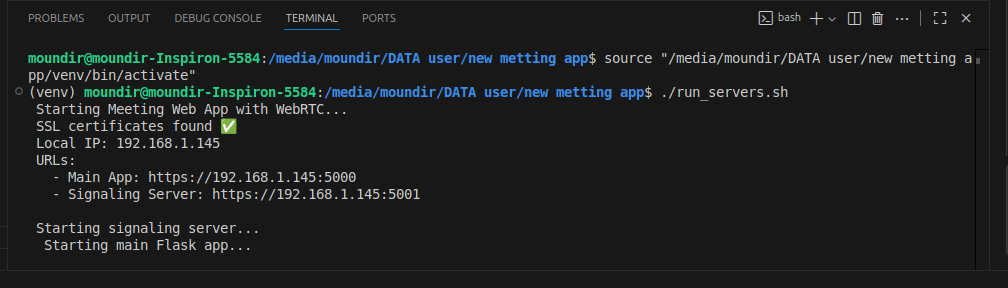
- Run the Signaling Server:
./run_server.sh
Explanation:
- Starts the Flask signaling server.
- Access the app in your browser:
https://localhost:5000
Explanation:
- Opens the Meeting App on your local machine.
7) Challenges and Solutions
Challenge 1: Face Recognition Accuracy
- Solution: Used high-quality images and fine-tuned the face recognition model parameters.
Challenge 2: WebRTC Connection Issues
- Solution: Implemented STUN and TURN servers to handle NAT traversal and fallback scenarios.
Challenge 3: Secure Data Storage
- Solution: Used SQLite with encryption and ensured secure handling of user data.
8) Future Improvements
-
Scalability:
- Migrate from SQLite to a more scalable database like PostgreSQL.
- Implement load balancing for the signaling server.
-
Enhanced Security:
- Use a trusted SSL certificate instead of self-signed certificates.
- Implement two-factor authentication (2FA).
-
Additional Features:
- Add screen sharing functionality.
- Implement chat functionality within meeting rooms.
9) WebRTC Quality Metrics
 To better understand the performance of real-time communication, we can calculate network quality parameters such as:
- Bandwidth (Throughput): Amount of data transferred per second.
- RTT (Round Trip Time): Time for a packet to travel from sender to receiver and back.
- Jitter: Variation in packet arrival times.
- Packet Loss: Percentage of packets lost during transmission.
Example Code (JavaScript)
You can calculate these metrics in the browser using WebRTC’s getStats() API.
setInterval(async () => {
    const stats = await peerConnection.getStats();
    stats.forEach(report => {
        if (report.type === "outbound-rtp" && report.kind === "video") {
            console.log("Bitrate (kbps):", (report.bytesSent * 8) / 1000);
            console.log("Packets Sent:", report.packetsSent);
        }
        if (report.type === "remote-inbound-rtp" && report.kind === "video") {
            console.log("RTT (ms):", report.roundTripTime * 1000);
            console.log("Jitter (ms):", report.jitter * 1000);
            console.log("Packet Loss (%):",
                ((report.packetsLost / report.packetsReceived) * 100).toFixed(2));
        }
    });
}, 5000);
Explanation:
setInterval(..., 5000)→ Runs every 5 seconds to fetch stats.peerConnection.getStats()→ Collects WebRTC connection statistics.outbound-rtp→ Tracks outgoing media (bitrate, packets sent).remote-inbound-rtp→ Tracks stats seen from the remote peer (RTT, jitter, packet loss).report.roundTripTime→ Measures RTT.report.jitter→ Measures jitter.report.packetsLost / report.packetsReceived→ Calculates packet loss percentage.
What These Metrics Tell Us
- High RTT (>300 ms): Delay in conversation, users notice lag.
- High Jitter (>30 ms): Video/audio may stutter.
- Packet Loss (>2%): Video freezes, audio cuts out.
- Bandwidth: Helps adjust video resolution dynamically.